
KOALA Support
Product guides & compatibility
Choose your product. Confirm device compatibility before connecting accessories. Detailed instructions are only listed where verified documentation is available.
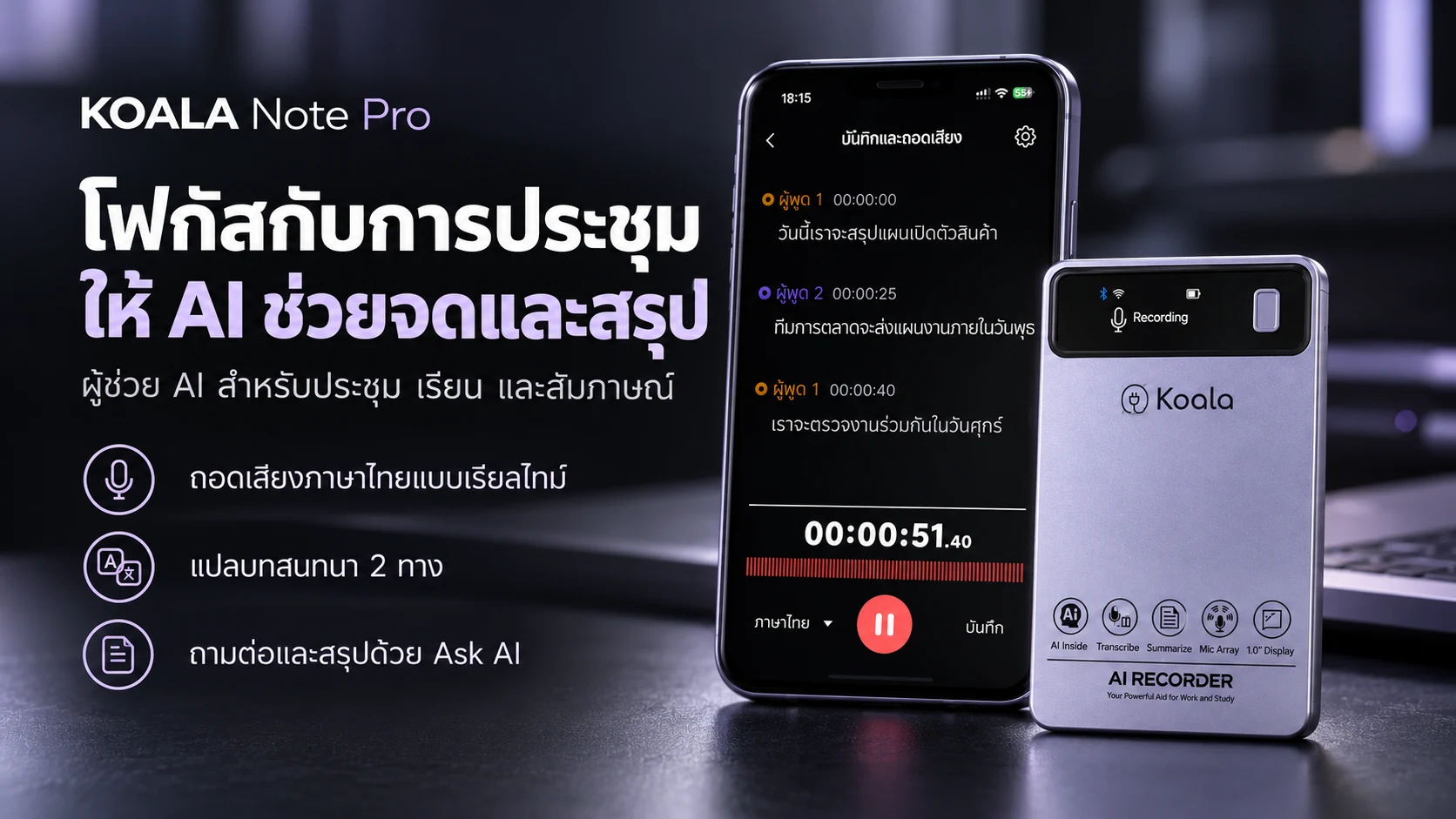
KOALA NOTE PRO
NOTE PRO feature overview. Detailed operating steps await the model-specific manual. Contact our team for setup guidance.
Real-time transcription
Read Thai text while recording through the app. Review the transcript against the original audio before important use.
Text and conversation translation
Bilingual text and two-way conversation translation are supported. Ask our team about your required language pair.
Ask AI
Help summarize key points, plan follow-up work, and draft emails from recorded content. Review answers before use.
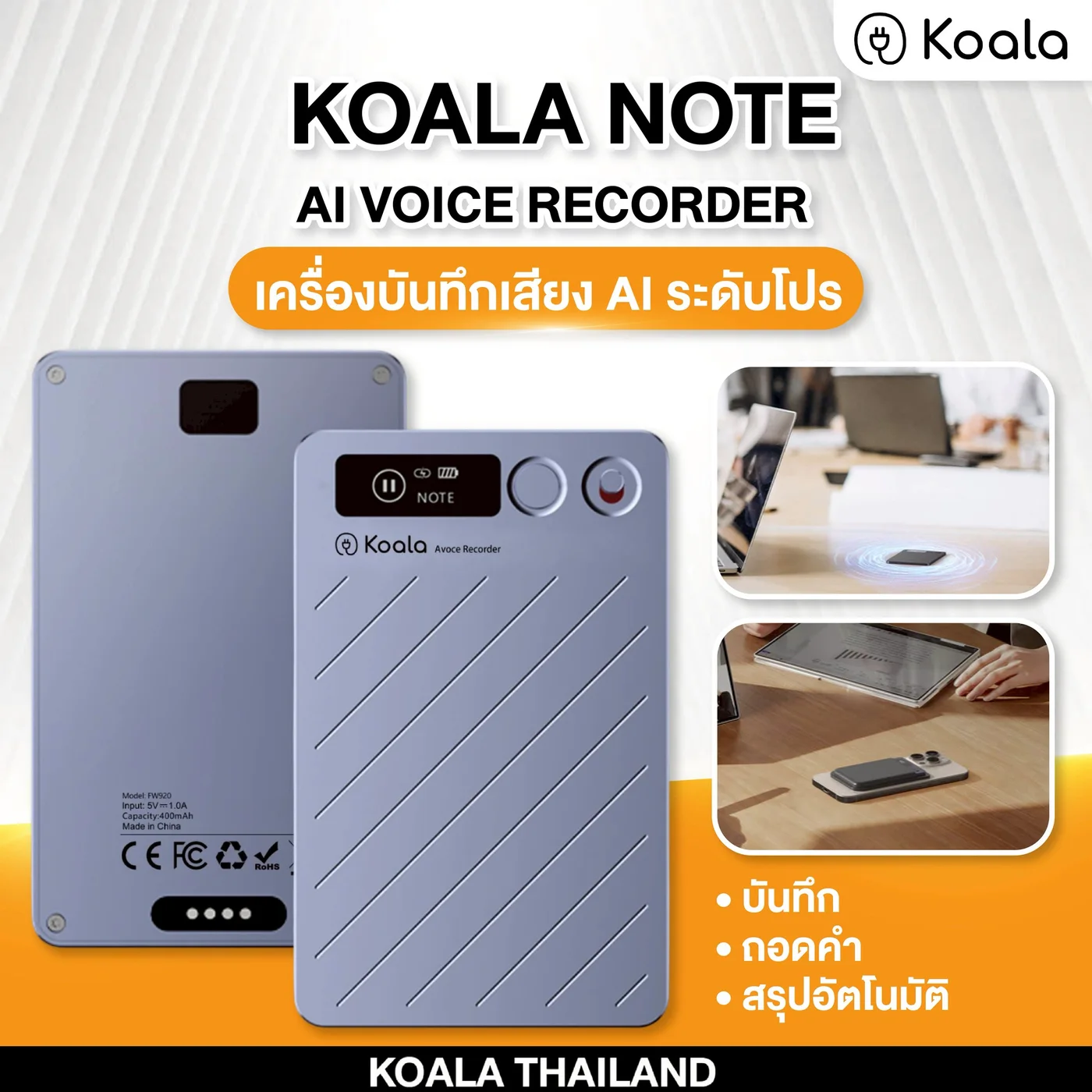
KOALA NOTE
Shared KOALA NOTE and KOALA NOTE PLUS guidance based on the FW920 product specification, covering activation, recording, app connection, and transcription.
First setup and activation
Before first use, charge the recorder and connect it to the app to activate normal operating mode.
- Charge with a standard 5V/1A (maximum) adapter and the supplied magnetic cable.
- Search for “DOWAY” in the App Store or Google Play and install the app.
- Turn on phone Bluetooth, power on the recorder, and connect the device through the app.
Power and wake the display
- Hold the power button for 3 seconds to turn on the recorder. The display shows “welcome”.
- Hold it for 3 seconds again to power off. The display shows “see you”.
- After 30 seconds without operation, the display sleeps. Briefly press the power button to wake it.
Choose NOTE or CALL mode
While the display is awake, double-press the power button to switch modes.
- NOTE is for general voice recording.
- CALL is for supported phone-audio recording scenarios.
Before recording audio or a conversation, inform everyone involved and follow applicable privacy laws and rules.
Start, pause, and save a recording
- Slide the recording switch upward. The recorder vibrates once and starts recording.
- During recording, briefly press the power button once to pause.
- Slide the recording switch downward to finish. The recorder vibrates twice, displays “save”, and stores the file automatically.
Connect the DOWAY app
- Open the app and enable phone Bluetooth. Both iOS and Android are supported.
- Power on the recorder and open the device connection screen in the app.
- Select the device named “X Note” and wait until both the app and the recorder Bluetooth icon show a connection.
Once connected, the app can access supported recording, playback, and file-management functions.
Transcription and AI Summary
- Open the required recording in the app to enter the playback and transcription screen.
- Choose “Transcribe”, then select a template and the spoken language.
- Start transcription and wait for processing to finish.
- The app then shows the transcript, summary, and Mind Map.
The selected transcription language must match the language spoken in the recording.
Where files are stored
- Without an app connection, recordings are stored in the recorder memory.
- After reconnecting, recordings made offline can be downloaded or transferred to the app.
- Transcription results are stored in the phone app.
Charging, file transfer, and export
Charge with the supplied magnetic cable and a 5V/1A (maximum) adapter. To connect to a phone or computer, use the supplied cable with the included OTG adapter.
This specification does not document the exact Export or Share controls in the app. Use only the options shown in the current app version, or contact support before an important workflow.
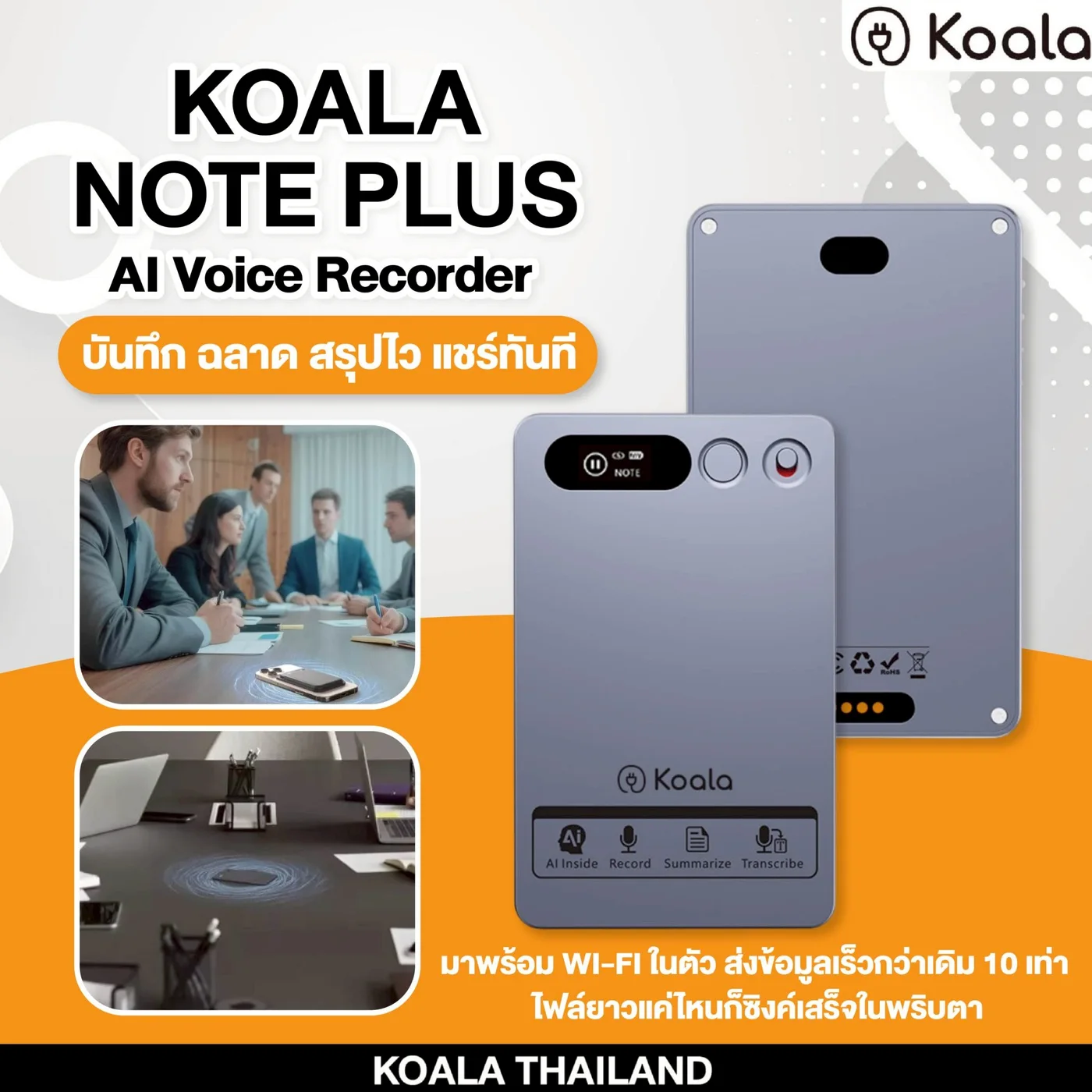
KOALA NOTE PLUS
Shared KOALA NOTE and KOALA NOTE PLUS guidance based on the FW920 product specification, covering activation, recording, app connection, and transcription.
First setup and activation
Before first use, charge the recorder and connect it to the app to activate normal operating mode.
- Charge with a standard 5V/1A (maximum) adapter and the supplied magnetic cable.
- Search for “DOWAY” in the App Store or Google Play and install the app.
- Turn on phone Bluetooth, power on the recorder, and connect the device through the app.
Power and wake the display
- Hold the power button for 3 seconds to turn on the recorder. The display shows “welcome”.
- Hold it for 3 seconds again to power off. The display shows “see you”.
- After 30 seconds without operation, the display sleeps. Briefly press the power button to wake it.
Choose NOTE or CALL mode
While the display is awake, double-press the power button to switch modes.
- NOTE is for general voice recording.
- CALL is for supported phone-audio recording scenarios.
Before recording audio or a conversation, inform everyone involved and follow applicable privacy laws and rules.
Start, pause, and save a recording
- Slide the recording switch upward. The recorder vibrates once and starts recording.
- During recording, briefly press the power button once to pause.
- Slide the recording switch downward to finish. The recorder vibrates twice, displays “save”, and stores the file automatically.
Connect the DOWAY app
- Open the app and enable phone Bluetooth. Both iOS and Android are supported.
- Power on the recorder and open the device connection screen in the app.
- Select the device named “X Note” and wait until both the app and the recorder Bluetooth icon show a connection.
Once connected, the app can access supported recording, playback, and file-management functions.
Transcription and AI Summary
- Open the required recording in the app to enter the playback and transcription screen.
- Choose “Transcribe”, then select a template and the spoken language.
- Start transcription and wait for processing to finish.
- The app then shows the transcript, summary, and Mind Map.
The selected transcription language must match the language spoken in the recording.
Where files are stored
- Without an app connection, recordings are stored in the recorder memory.
- After reconnecting, recordings made offline can be downloaded or transferred to the app.
- Transcription results are stored in the phone app.
Charging, file transfer, and export
Charge with the supplied magnetic cable and a 5V/1A (maximum) adapter. To connect to a phone or computer, use the supplied cable with the included OTG adapter.
This specification does not document the exact Export or Share controls in the app. Use only the options shown in the current app version, or contact support before an important workflow.
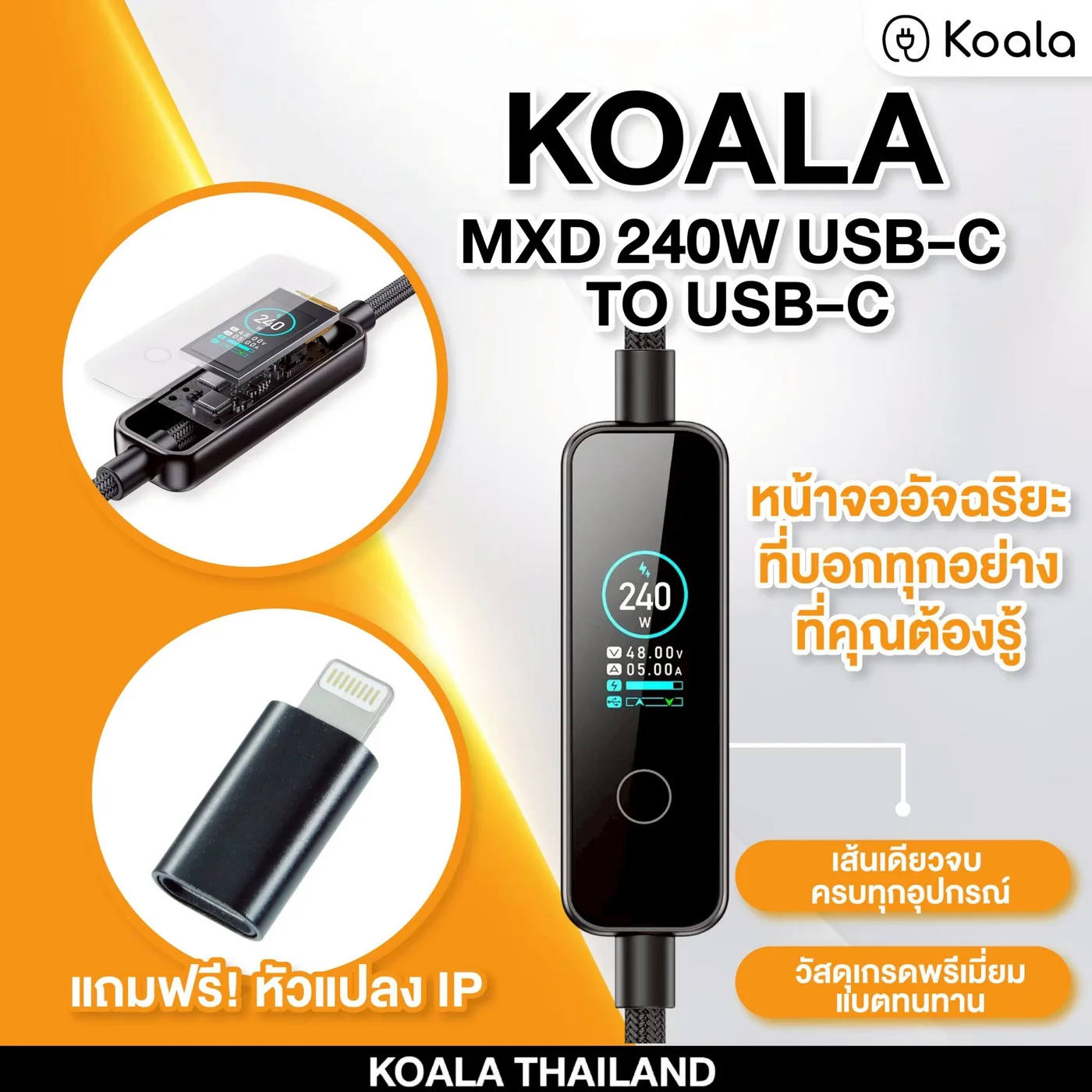
KOALA MXD Cable
240W metal charging cable with a charging status display.
Detailed operating steps await a verified manual. These answers are from the published product information; contact support for model-specific instructions.
Can I use it with iPhone 15 and newer?
Yes, with USB-C iPhone models. Actual power depends on the device and charger.
Can I use it with MacBook or iPad?
Yes, with USB-C devices that support PD charging.
Why do some devices not reach 240W?
240W is the cable maximum. Actual power depends on the charger and device.
Does it support Vivo / OPPO proprietary fast charging?
No. It does not support brand-specific protocols such as VOOC, HyperCharge, or Vivo Flash Charge.
What does the display show?
Charging status such as watts, volts, and amps.
How long is the warranty?
2-year limited warranty, subject to the applicable terms and valid purchase proof.
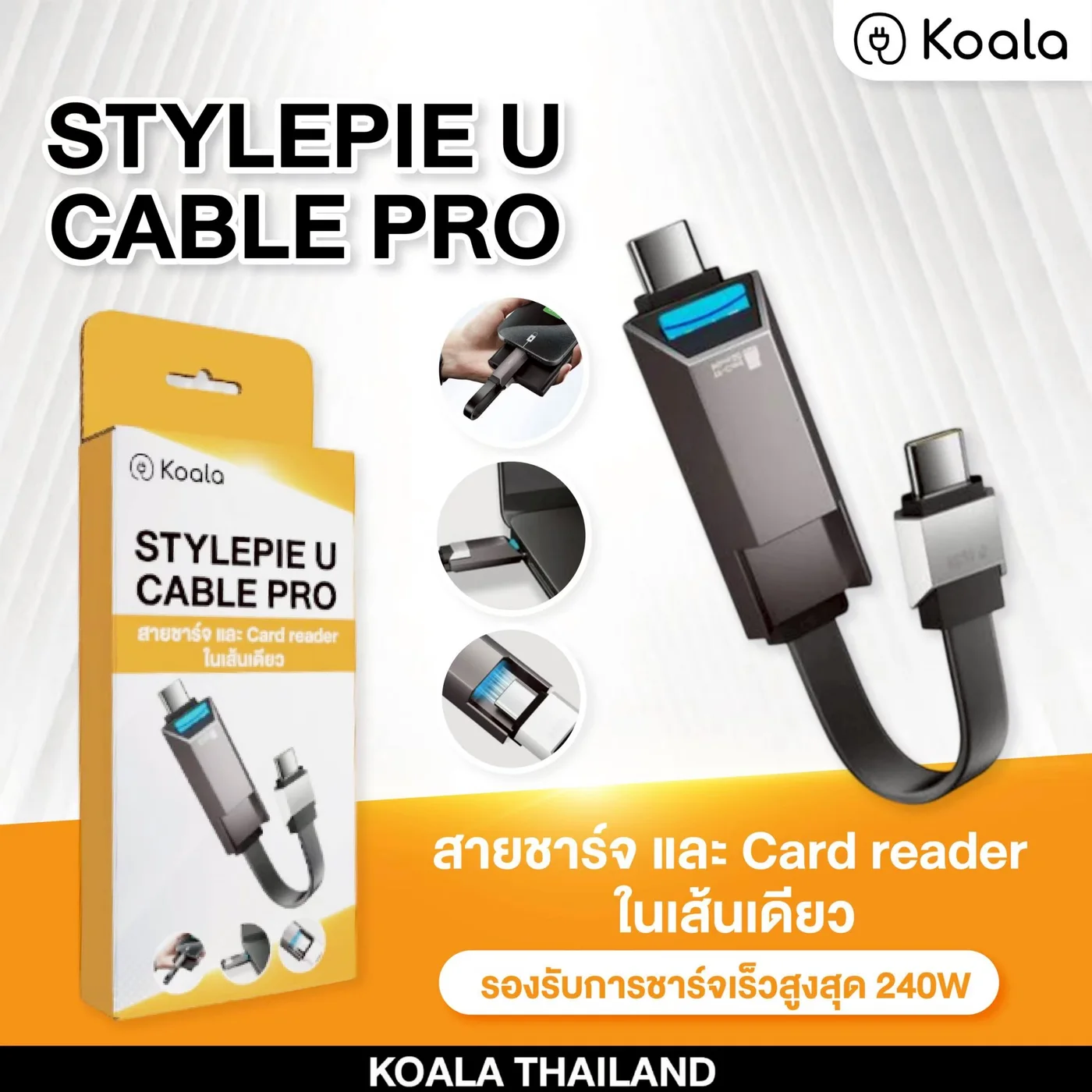
KOALA U PRO Cable
Starter guidance based on current product specifications. Check device compatibility before use.
iPhone USB-C
Use with iPhone models that have a USB-C port. Card access depends on the file formats supported by the device.
Android
Before use, check that your USB-C phone supports OTG and card access.
TF / MicroSD
The built-in reader supports TF / MicroSD cards up to 2TB according to the product specifications.
exFAT
For iOS, exFAT is recommended. Back up the card before formatting because existing data may be erased.
Frequently asked questions
See the product page for answers about iPhone, Android, iPad, MacBook, and supported speeds.
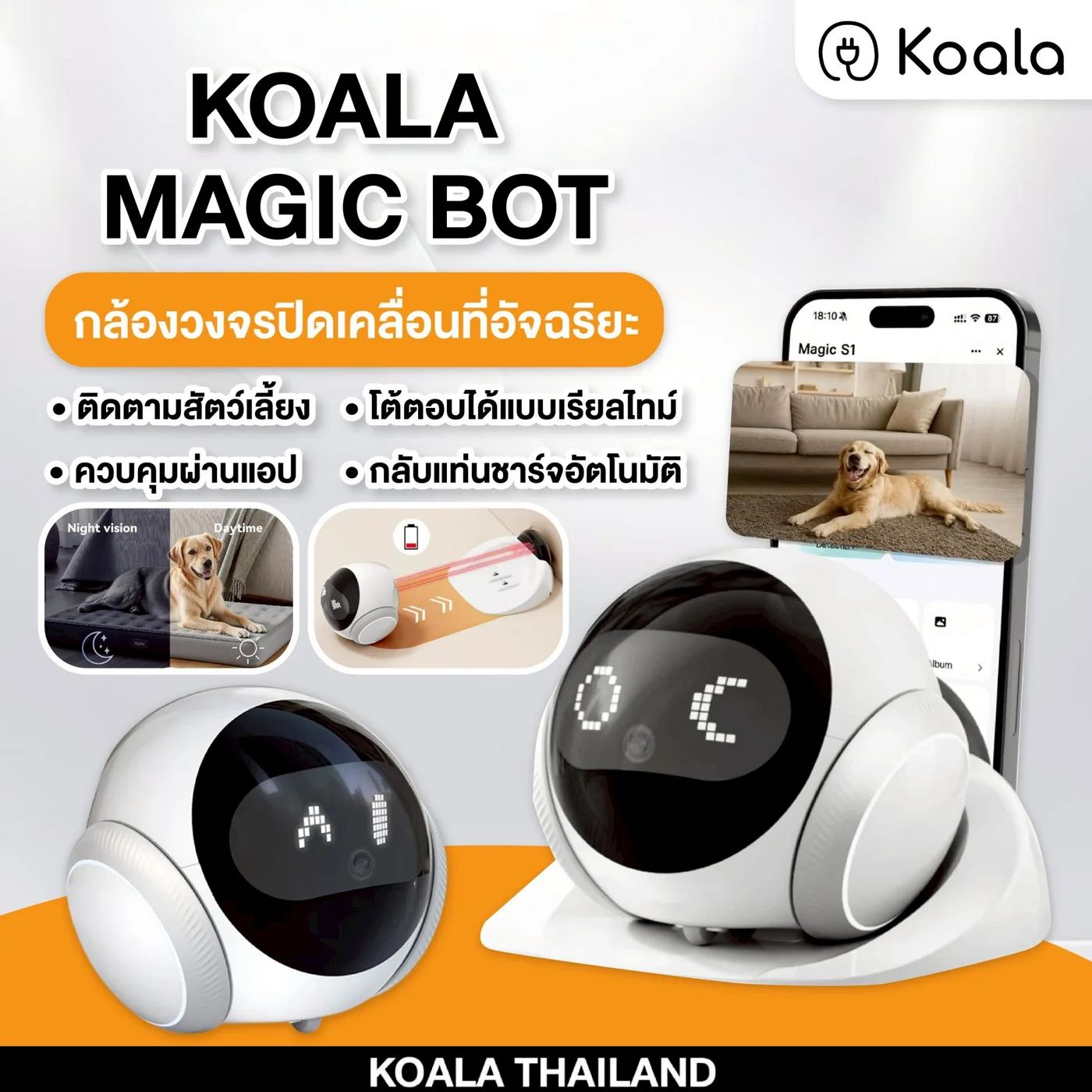
KOALA MAGIC BOT
Smart mobile pet camera for real-time viewing on your phone.
Detailed operating steps await a verified manual. These answers are from the published product information; contact support for model-specific instructions.
Can I watch pets while outside?
Yes, after connecting the device and app as instructed.
Does it need Wi-Fi?
Yes. Wi-Fi is required for real-time mobile viewing.
Can I view it on my phone?
Yes, after setup.
What homes is it suitable for?
Condos, houses, and indoor spaces needing a mobile camera.
How long is the warranty?
A 1-year limited warranty covers confirmed manufacturing defects, subject to the stated terms and valid purchase proof.
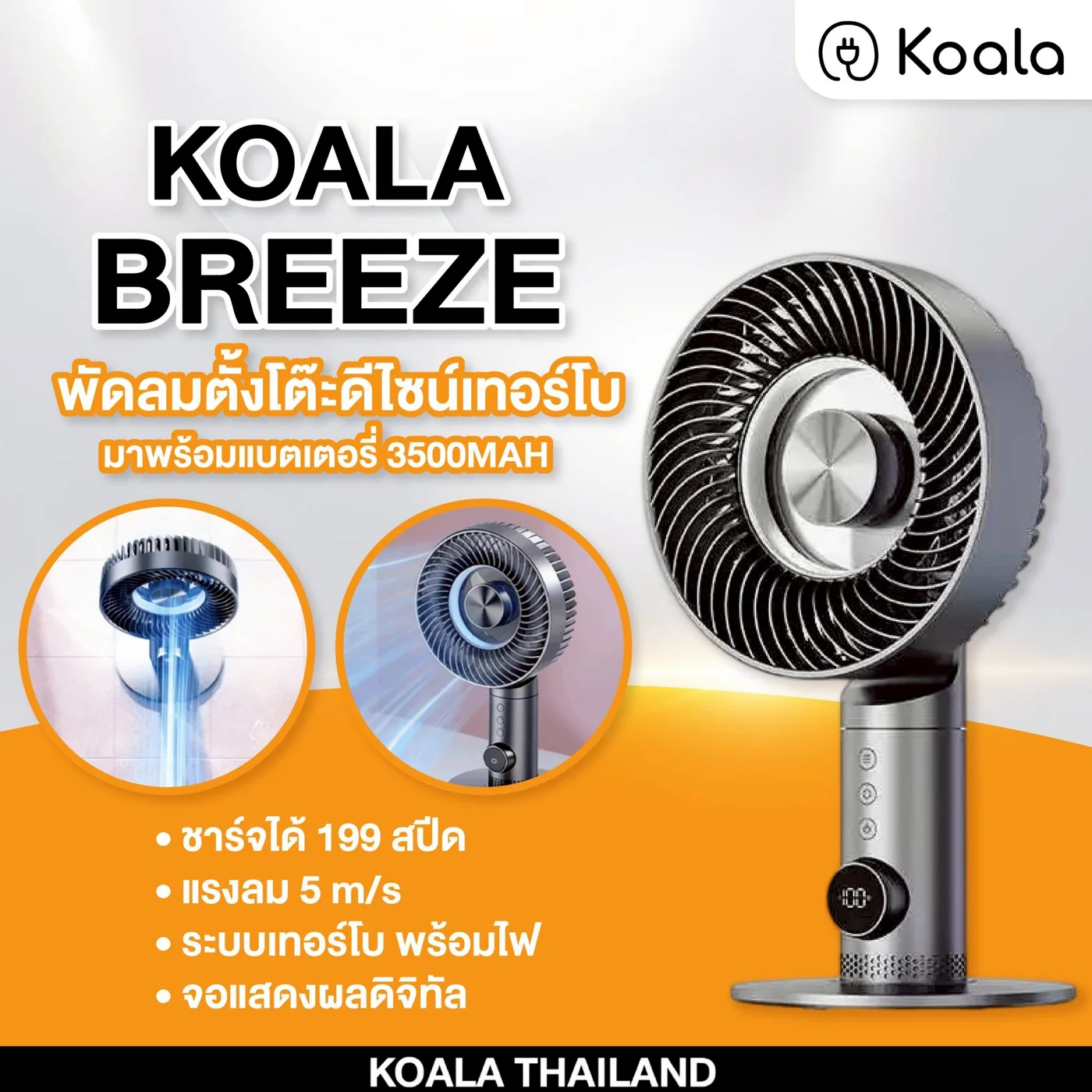
KOALA BREEZE
Premium desk fan for work desks, bedrooms, and dorms.
Detailed operating steps await a verified manual. These answers are from the published product information; contact support for model-specific instructions.
How long does the battery last?
Runtime depends on wind level and usage pattern.
Can I use it while charging?
Check the official manual for safe continuous use while charging.
Is it suitable for bedrooms?
Yes. It is suitable for bedrooms, desks, and personal spaces.
Is it loud?
Noise level depends on the wind speed selected.
How long is the warranty?
A 1-year limited warranty covers confirmed manufacturing defects, subject to the stated terms and valid purchase proof.
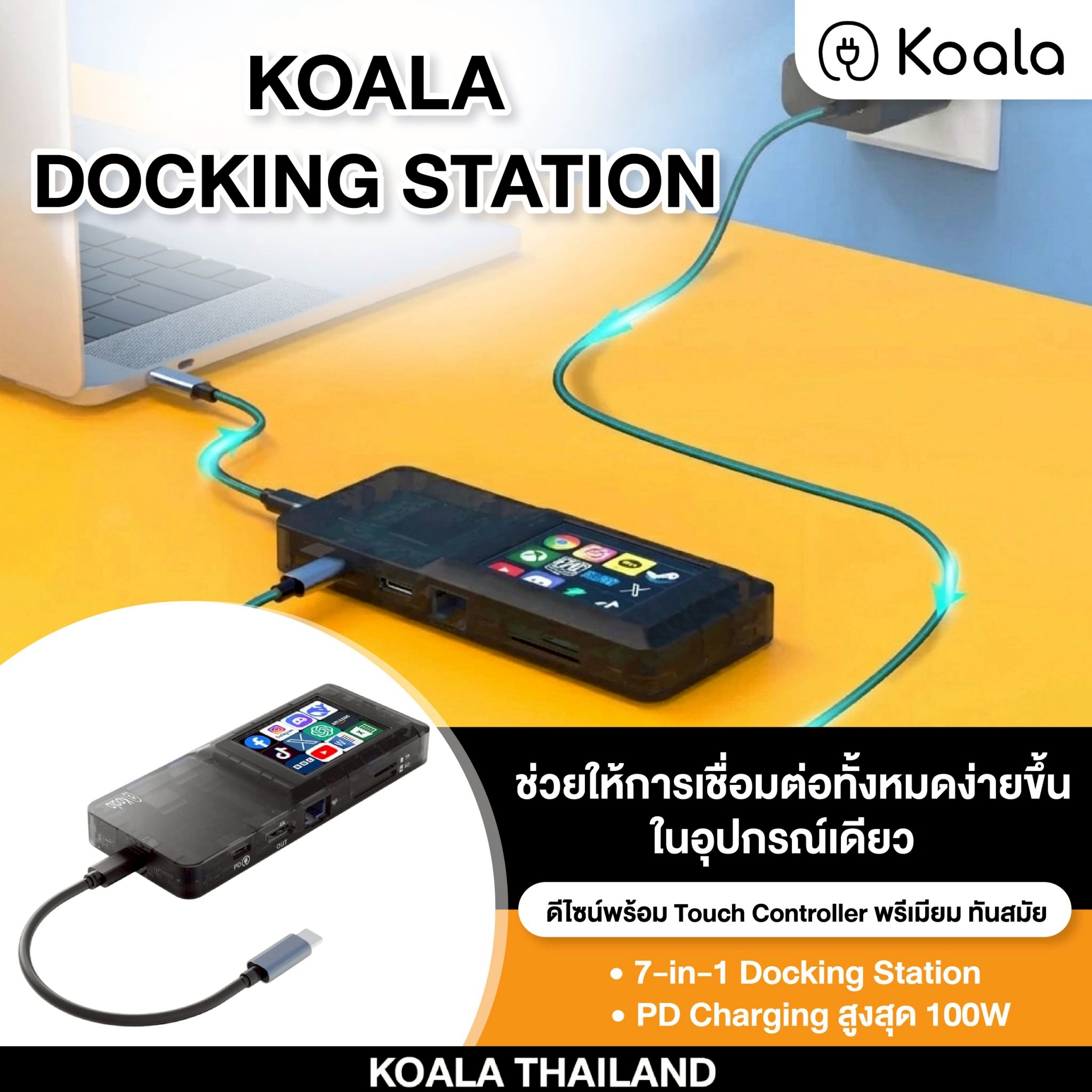
KOALA Docking Station USB-C Hub 7-in-1
7-in-1 USB-C hub with HDMI 4K, LAN, USB 3.0, and 100W PD charging.
Detailed operating steps await a verified manual. These answers are from the published product information; contact support for model-specific instructions.
Does it work with every USB-C laptop?
Supported functions depend on the connected device. HDMI requires USB-C video output or DisplayPort Alt Mode support.
What should I check if HDMI does not work?
Check whether the laptop supports USB-C video output / DisplayPort Alt Mode, plus the HDMI cable, display, and display settings.
Will every laptop charge at 100W?
100W is the maximum supported value. Actual charging power depends on the adapter, cable, and device.
When is the LAN port useful?
It is useful for online meetings, video calls, online classes, livestreaming, or places where Wi-Fi is unstable.
How long is the warranty?
A 2-year limited warranty covers confirmed manufacturing defects, subject to the stated terms and valid purchase proof.
Where can I buy it?
This product is currently sold through Shopee Official Store only. Use official channels for genuine products and after-sales support.

KOALA Pro Electric Umbrella
koala Pro electric umbrella overview. Detailed operating and charging instructions await the confirmed manual. Contact our team for guidance.
One-handed opening and closing
Control the electric mechanism using the buttons on the handle with the hand holding the umbrella.
Type-C charging
This model has a Type-C charging port. Check the manual or ask our team about the adapter and charging instructions before use.
Size and frame
Open diameter: 115 cm. Open height: 66 cm. Folded height: 34 cm. Folded width: 6.5 cm. The frame has 10 ribs.
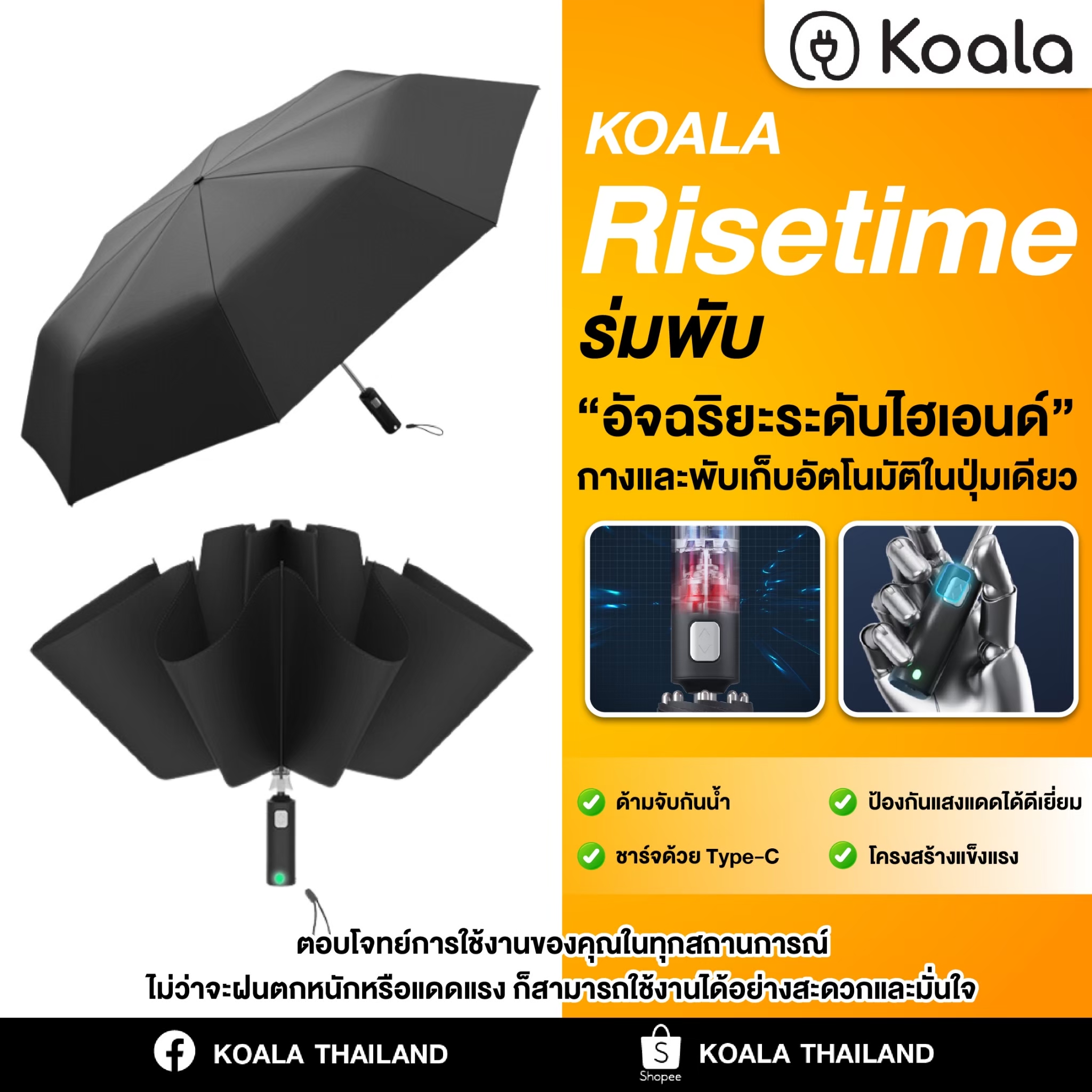
KOALA Risetime Umbrella
Portable umbrella for everyday use and travel.
Detailed operating steps await a verified manual. These answers are from the published product information; contact support for model-specific instructions.
Where can I buy KOALA Risetime Umbrella?
This product is currently sold through Shopee Official Store only.
Is it available on TikTok Shop?
There is no TikTok Shop link for this product yet.
Where should I buy to avoid counterfeit products?
Use the Shopee Official Store link shown on this website.
Does it include warranty support?
A 1-year limited warranty covers confirmed manufacturing defects, subject to the stated terms and valid purchase proof.
Is it suitable for everyday carry?
Yes. It is suitable for daily use, commuting, work, and school.
No matching product.