Provide your purchase details to make verification easier. Registration does not change the original warranty period or terms.
Registration received
Warranty Registered ✓
We received your registration. Our team will review the purchase evidence and applicable terms before confirming eligibility. Registration does not extend the original warranty period.
LINE Official will be available after the official link is confirmed.
Step 2 / Get Started
Get started with your product
Select a product to see information for your model.
Select a product in the form to view relevant guidance and questions.
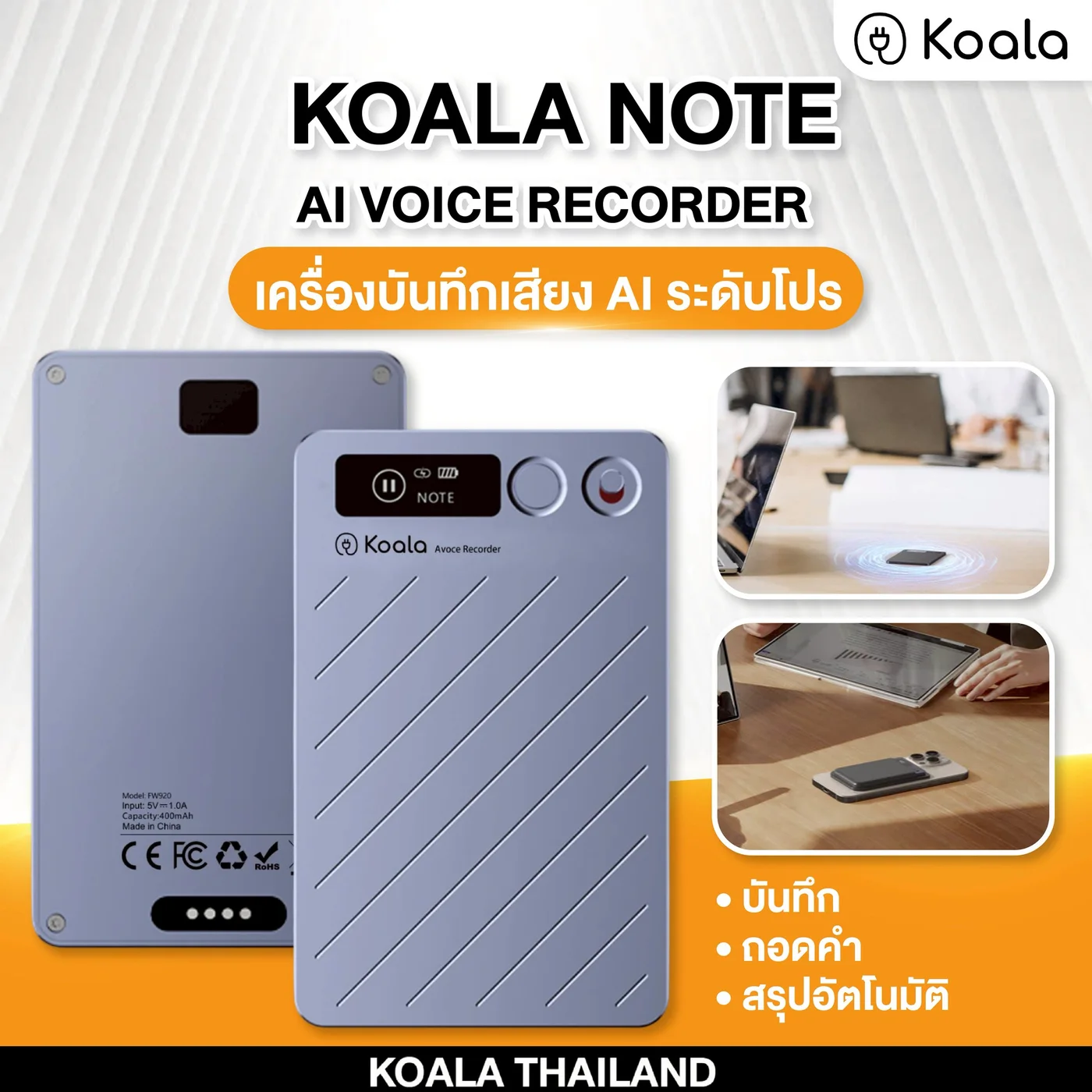
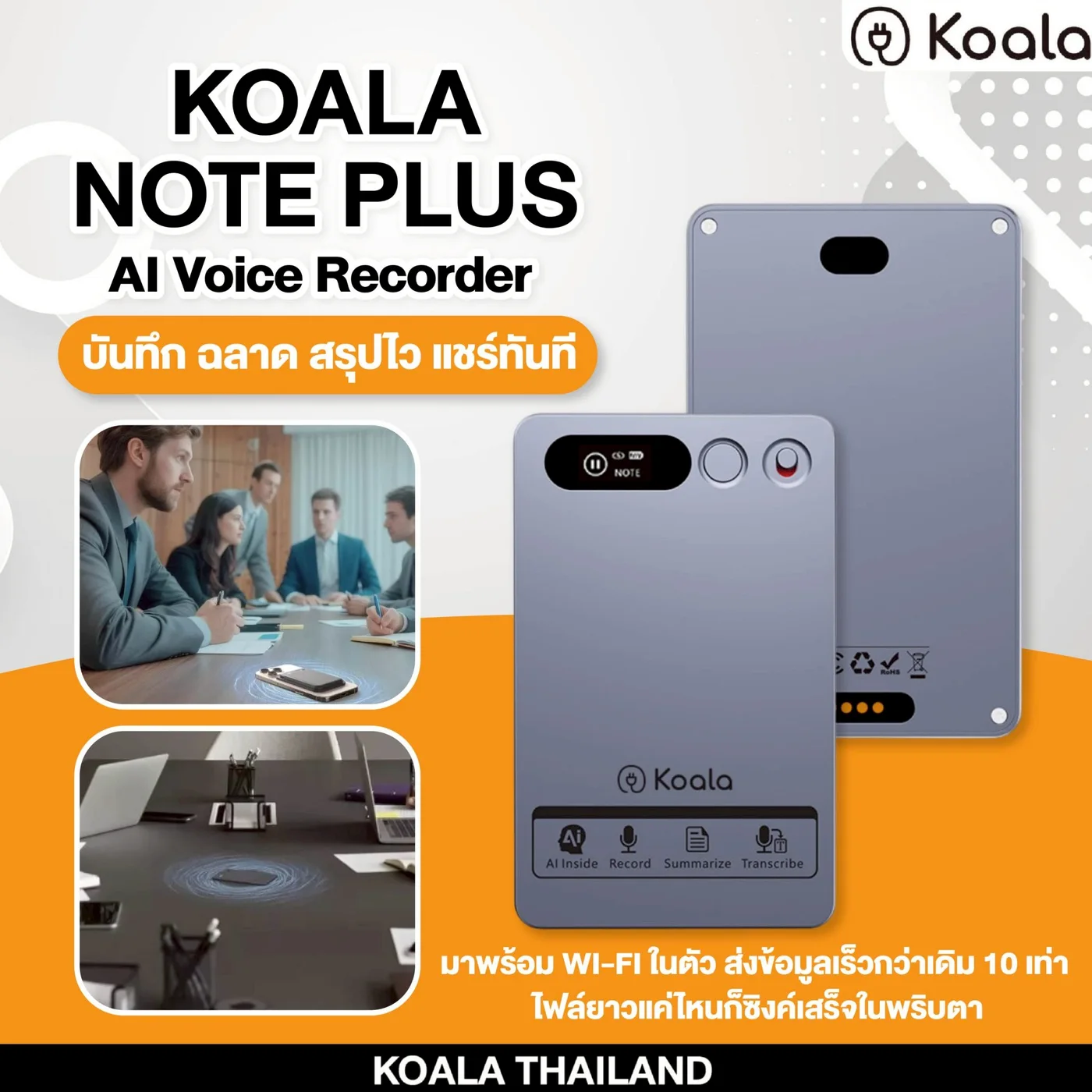
KOALA NOTE
Shared KOALA NOTE and KOALA NOTE PLUS guidance based on the FW920 product specification, covering activation, recording, app connection, and transcription.
First setup and activation
Before first use, charge the recorder and connect it to the app to activate normal operating mode.
Charge with a standard 5V/1A (maximum) adapter and the supplied magnetic cable.
Search for “DOWAY” in the App Store or Google Play and install the app.
Turn on phone Bluetooth, power on the recorder, and connect the device through the app.
Power and wake the display
Hold the power button for 3 seconds to turn on the recorder. The display shows “welcome”.
Hold it for 3 seconds again to power off. The display shows “see you”.
After 30 seconds without operation, the display sleeps. Briefly press the power button to wake it.
Choose NOTE or CALL mode
While the display is awake, double-press the power button to switch modes.
NOTE is for general voice recording.
CALL is for supported phone-audio recording scenarios.
Before recording audio or a conversation, inform everyone involved and follow applicable privacy laws and rules.
Start, pause, and save a recording
Slide the recording switch upward. The recorder vibrates once and starts recording.
During recording, briefly press the power button once to pause.
Slide the recording switch downward to finish. The recorder vibrates twice, displays “save”, and stores the file automatically.
Connect the DOWAY app
Open the app and enable phone Bluetooth. Both iOS and Android are supported.
Power on the recorder and open the device connection screen in the app.
Select the device named “X Note” and wait until both the app and the recorder Bluetooth icon show a connection.
Once connected, the app can access supported recording, playback, and file-management functions.
Transcription and AI Summary
Open the required recording in the app to enter the playback and transcription screen.
Choose “Transcribe”, then select a template and the spoken language.
Start transcription and wait for processing to finish.
The app then shows the transcript, summary, and Mind Map.
The selected transcription language must match the language spoken in the recording.
Where files are stored
Without an app connection, recordings are stored in the recorder memory.
After reconnecting, recordings made offline can be downloaded or transferred to the app.
Transcription results are stored in the phone app.
Charging, file transfer, and export
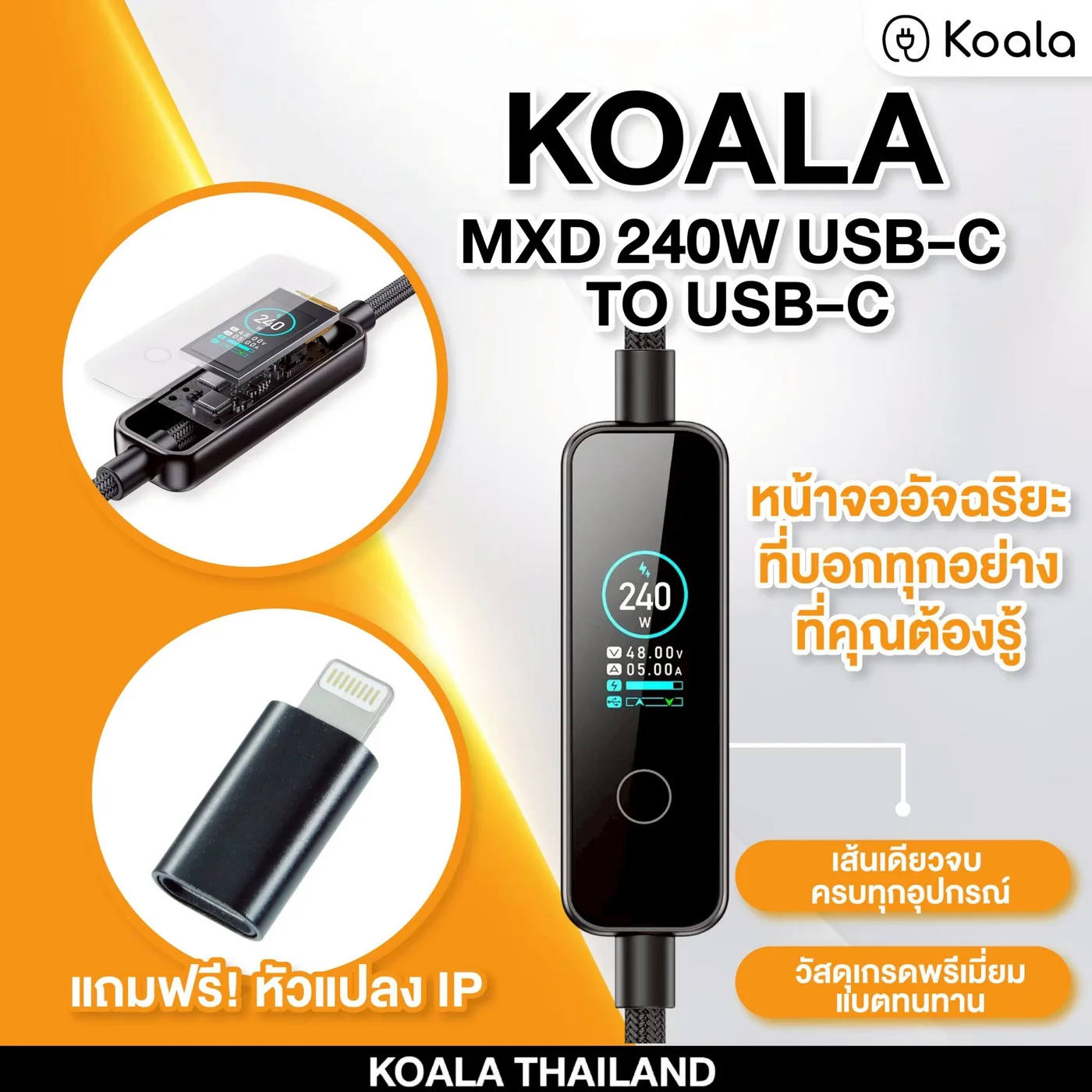
Charge with the supplied magnetic cable and a 5V/1A (maximum) adapter. To connect to a phone or computer, use the supplied cable with the included OTG adapter.
This specification does not document the exact Export or Share controls in the app. Use only the options shown in the current app version, or contact support before an important workflow.
Shared KOALA NOTE and KOALA NOTE PLUS guidance based on the FW920 product specification, covering activation, recording, app connection, and transcription.
First setup and activation
Before first use, charge the recorder and connect it to the app to activate normal operating mode.
Charge with a standard 5V/1A (maximum) adapter and the supplied magnetic cable.
Search for “DOWAY” in the App Store or Google Play and install the app.
Turn on phone Bluetooth, power on the recorder, and connect the device through the app.
Power and wake the display
Hold the power button for 3 seconds to turn on the recorder. The display shows “welcome”.
Hold it for 3 seconds again to power off. The display shows “see you”.
After 30 seconds without operation, the display sleeps. Briefly press the power button to wake it.
Choose NOTE or CALL mode
While the display is awake, double-press the power button to switch modes.
NOTE is for general voice recording.
CALL is for supported phone-audio recording scenarios.
Before recording audio or a conversation, inform everyone involved and follow applicable privacy laws and rules.
Start, pause, and save a recording
Slide the recording switch upward. The recorder vibrates once and starts recording.
During recording, briefly press the power button once to pause.
Slide the recording switch downward to finish. The recorder vibrates twice, displays “save”, and stores the file automatically.
Connect the DOWAY app
Open the app and enable phone Bluetooth. Both iOS and Android are supported.
Power on the recorder and open the device connection screen in the app.
Select the device named “X Note” and wait until both the app and the recorder Bluetooth icon show a connection.
Once connected, the app can access supported recording, playback, and file-management functions.
Transcription and AI Summary
Open the required recording in the app to enter the playback and transcription screen.
Choose “Transcribe”, then select a template and the spoken language.
Start transcription and wait for processing to finish.
The app then shows the transcript, summary, and Mind Map.
The selected transcription language must match the language spoken in the recording.
Where files are stored
Without an app connection, recordings are stored in the recorder memory.
After reconnecting, recordings made offline can be downloaded or transferred to the app.
Transcription results are stored in the phone app.
Charging, file transfer, and export
Charge with the supplied magnetic cable and a 5V/1A (maximum) adapter. To connect to a phone or computer, use the supplied cable with the included OTG adapter.
This specification does not document the exact Export or Share controls in the app. Use only the options shown in the current app version, or contact support before an important workflow.