
AI Workflows
How to Turn Thai Meeting Recordings into Actionable Notes with KOALA NOTE
Prepare, record, save, transcribe and review with a documented NOTE workflow. Build an action list without inventing owners or deadlines, and keep sensitive meeting information under control.
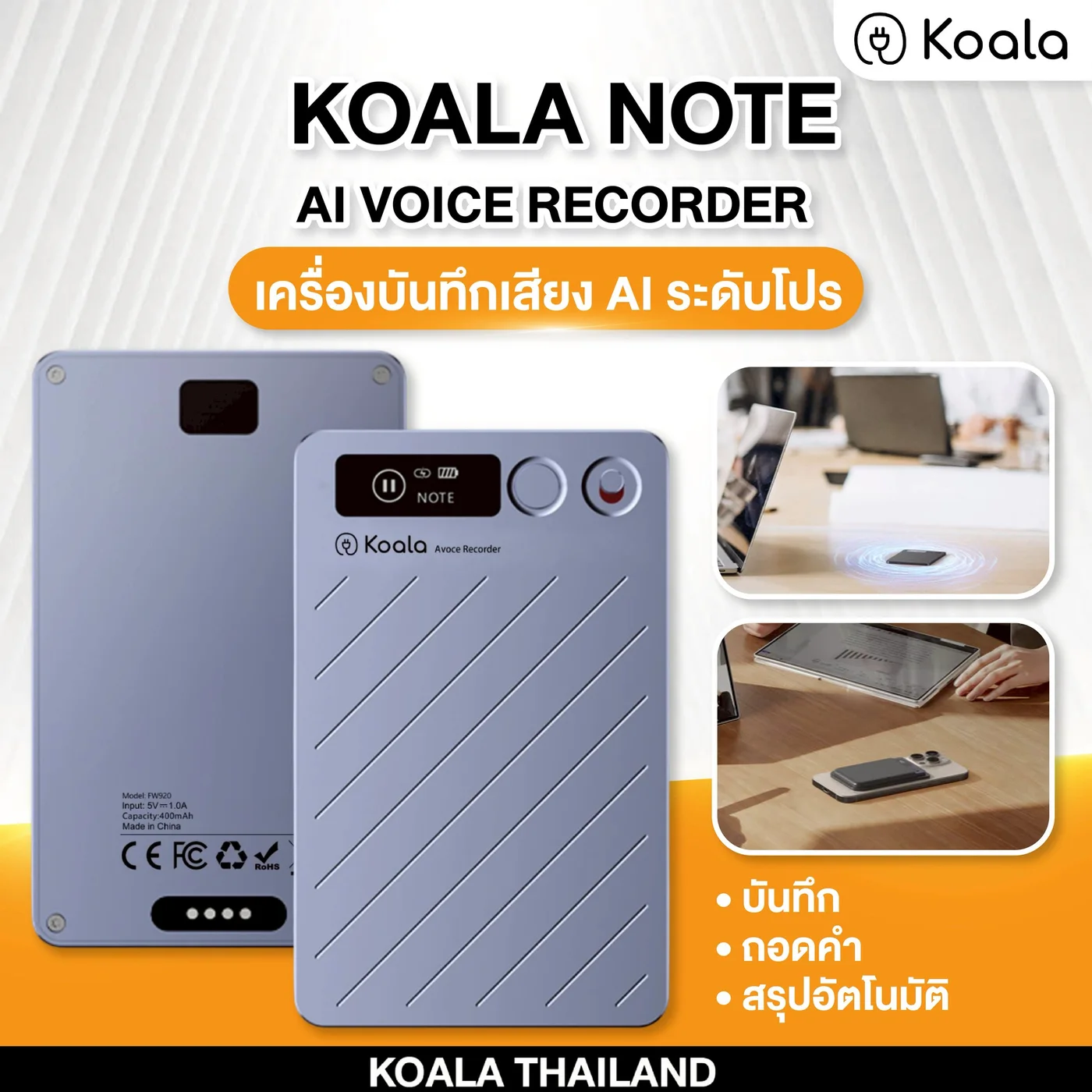
Aim for notes your team can act on
Useful meeting notes explain what was decided, what needs doing and what is still unresolved. This workflow uses KOALA NOTE to keep an original recording, then transcribe and summarize it afterward using the shared FW920 instructions already confirmed for the website. It does not promise that a recording of any length will finish processing in three minutes.
Use it for Thai team meetings, project reviews, training and follow-up tasks. For Thai-English meetings, check the languages available in the current feature first. Names, figures and language switches may need additional checking. Listen back to important passages before treating the output as an official record.
Before the meeting: device and permission checks
- Inform participants and obtain the permissions required by your organization and applicable privacy rules. If recording is not permitted, use another note-taking method.
- Charge with the supplied magnetic cable and a standard 5V/1A maximum adapter as documented. Check power before the session.
- For first use, install DOWAY from the App Store or Google Play, enable Bluetooth and connect the recorder through the app to activate normal operation.
- Place the recorder where speech can reach it without papers or bags covering it. Make a short test in the actual room before the important discussion.
- Choose a reviewer and an approved storage location. Do not make a meeting recording publicly accessible just to share it with colleagues.
If the battery swells, becomes abnormally hot or leaks, stop using and charging the device and contact support. Do not keep recording to demonstrate the problem. Read the battery safety guidance before handling or returning it.
Step 1 — Start, pause and finish recording
- Hold the power button for three seconds to switch on. The display shows “welcome”.
- With the screen awake, double-press the power button to select NOTE mode for a general meeting. Do not substitute CALL mode without checking the supported scenario.
- Slide the recording switch upward. The recorder vibrates once and begins recording. A short press of the power button pauses recording.
- At the end, slide the switch downward. The recorder vibrates twice, displays “save” and saves the file automatically.
A sleeping screen does not necessarily mean recording has stopped. The shared instructions say the display sleeps after 30 seconds without operation and can be woken with a short button press. Check status using documented controls rather than experimenting with several buttons during an important passage.
Step 2 — Save and bring the recording into the app
When the app is disconnected, recordings are stored in the recorder’s memory. After the meeting, open DOWAY, enable phone Bluetooth, switch on the recorder and open the app’s device connection screen. Select “X Note” and wait until the app status and the recorder’s Bluetooth icon show a connection. Download or transfer the stored recording using the options shown in the app.
Play the transferred file and confirm it contains the intended meeting before deleting an original. A filename alone is not a completed-backup check. For a wired connection to a phone or computer, the shared instructions describe the supplied magnetic cable and OTG adapter, but they do not document every version’s exact Export or Share controls.
| Model | Confirmed information | Do not assume |
|---|---|---|
| NOTE | Connect DOWAY to download recordings; shared instructions describe magnetic cable and OTG adapter | Wi-Fi or identical Export controls across all versions |
| NOTE PLUS | Product data lists Wi-Fi 6 file transfer | Ask support for the current Wi-Fi setup and menu rather than copying NOTE steps |
| NOTE PRO | Real-time Thai transcription and Ask AI capabilities confirmed | DOWAY and FW920 button instructions are not confirmed PRO instructions |
Step 3 — Transcribe Thai and check the text
- Open the required recording in the app to enter the playback and transcription screen.
- Select “Transcribe”, then choose a template and the spoken language. Select Thai for a Thai recording.
- Start transcription and wait for processing. Timing depends on the recording and service conditions, not a fixed completion guarantee.
- Check people’s names, organizations, amounts, figures and decisions against the original audio.
For English or another language, confirm that it appears in the current app and account before starting. Selecting Thai does not guarantee that English passages will be transcribed correctly. Mark mixed-language passages for extra review and ask support if the language settings for your workflow are unclear.
Step 4 — Turn AI Summary into a follow-up list
The NOTE instructions describe Summary and Mind Map after transcription. Start there, then separate decisions, actions and open questions. For each action, check whether an owner and due date were actually agreed. If they were not, write “To confirm” instead of allowing a plausible guess to become a team commitment.
Where does Ask AI fit?
The current product information confirms Ask AI for NOTE PRO, not NOTE or NOTE PLUS. This is therefore not an instruction to press an Ask AI button on NOTE. If you use PRO, ask for its model-specific menu instructions. The examples below describe useful requests, not verified control labels for every app version.
- Summarize only explicit decisions, keeping unresolved proposals separate.
- Extract follow-up actions with owners and dates only where they are stated. Mark missing details “To confirm”.
- List unanswered questions separately from assigned work.
- Draft a follow-up email without adding commitments or figures absent from the record.
Before using any AI tool with work content, check account entitlements and organizational data rules. Do not upload confidential audio or transcripts to another service just to follow an example. With NOTE alone, you can build the same action-table structure manually from a reviewed summary and transcript.
Example: an action list awaiting confirmation
| Action item | Owner | Due date | Status |
|---|---|---|---|
| Collect comments on the draft plan | Project team (to confirm) | Not stated | To confirm |
| Check budget figures against the source file | Not stated | Not stated | To confirm |
| Arrange the next review session | Coordinator (to confirm) | After team agreement | To confirm |
Share the draft only with authorized participants. Highlight points requiring a decision and record revisions once the team confirms them. Keep the review date separate from the meeting date so that an agreement reached afterward is not presented as something said in the original session.
Before sending the final notes
- Names and significant figures match the audio or referenced documents.
- Each action has a source or is clearly marked as awaiting confirmation.
- Recipients have appropriate access; there is no unnecessary public recording link.
- Originals and reviewed outputs are backed up according to policy, without keeping uncontrolled copies indefinitely.
Make the process work for your team
Use NOTE to assess the documented record-and-review process above. If transfer or reading along is a key constraint, read the NOTE, PLUS and PRO comparison before choosing another model. Consult the device getting-started guide if the current app differs from the instructions.
For an organization, begin with a non-confidential sample meeting. Test actual languages and sound conditions, and agree how notes will be reviewed before placing a larger order. Use the corporate purchase inquiry to explain user numbers and data-handling needs.
Related products
AI Recorder
KOALA NOTE
AI voice recorder for meetings, classes, and interviews.
Record, transcribe, and summarize with AI, including Thai support.

AI Recorder
KOALA NOTE PLUS
Upgraded AI recorder for frequent and serious users.
Wi-Fi 6 and improved microphones for real work meetings.
Equip Your Team with Smarter Tools
Looking for AI recording solutions for your business? Explore corporate purchasing options and request a tailored quotation.
Request a Corporate Quote