
Buying Guides
USB-C Cable with a MicroSD Card Reader: Everything You Need to Know About KOALA U CABLE PRO
A full phone, a camera card and a laptop do not always fit the same workflow. Learn what an integrated MicroSD reader changes, when USB4 and 240W matter, and what to check on your own devices.
Start with the file you need to move
Imagine reviewing a day of footage on the way home from a shoot. The phone is nearly full, the camera footage is on a MicroSD card, and the only accessory in the bag is a charging cable. That cable may be fine for the battery and still leave you with no way to open the camera card on the phone.
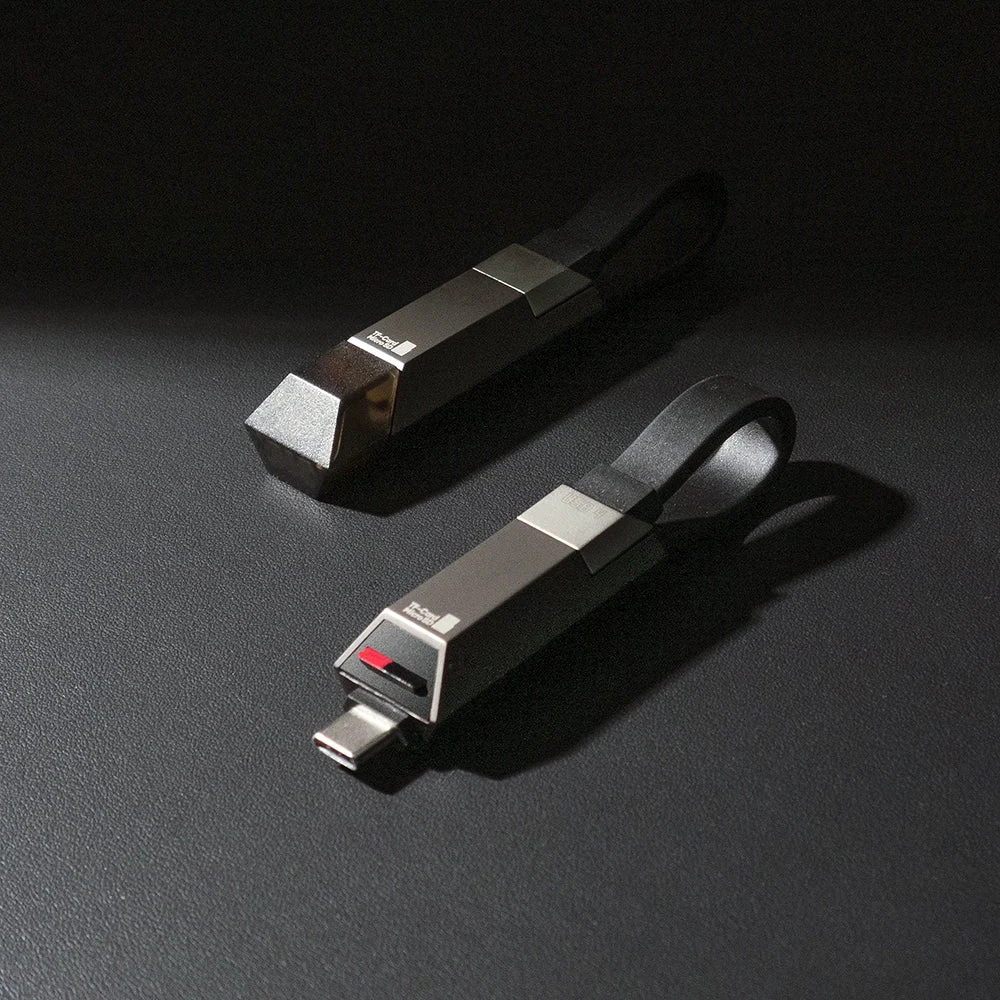
The KOALA U CABLE PRO is designed for three jobs: charging a compatible device, connecting devices for data transfer, and accessing a TF or MicroSD card. Its appeal is fewer separate accessories when those jobs alternate during a day. It is not a dock, an external SSD, or a promise that all three jobs can run together.
What does a MicroSD reader in a cable do?
A USB-C plug tells you what fits physically. It does not tell you which USB data mode a cable supports, how much power it can carry, or whether it can read storage. The difference here is a dedicated card slot and reader circuitry. A compatible phone, tablet or computer can access files on a card through that reader.
TF, short for TransFlash, is an older name you will still see for MicroSD. The reader is built into the cable, but the storage is not. With no compatible card inserted, there is no card storage to access. A card also does not add space to your phone’s internal memory or make room for app installations.
For a phone running out of room, the practical option is to copy clips that already exist, verify the copies, and only then decide what to remove. Saving a clip after recording and recording directly to a card are different jobs. Do not assume the latter works just because the former does.
Regular USB-C cable or KOALA U CABLE PRO?
| Decision point | Regular USB-C cable without a reader | KOALA U CABLE PRO |
|---|---|---|
| Charging and PD 3.1 | Check the rating; a conventional high-power cable can also support 240W | Rated for up to 240W with USB PD 3.1 and a compatible setup |
| Data transfer and USB4 | Ranges from charge-focused options to full USB4 cables; check the spec | Rated for a USB4 link up to 40Gbps with compatible ports and devices |
| MicroSD access | Requires a card slot on the host or a separate reader | Integrated TF / MicroSD reader |
| Storage expansion | No storage in the cable; connect separate storage if supported | Removable card storage, not an internal SSD |
| Device requirements | Cable spec, the ports on both ends and the charging or data standard must match | The same checks apply, plus support for external storage and the card’s file system |
| Who should carry it? | People who mostly charge or already have a trusted card reader | People who regularly work with MicroSD and want to carry one less accessory |
| Limits | Does not read a card by itself | Does not replace a multiport hub or SSD; concurrent charging and reading are not a buying assumption |
If you already own a USB4 cable that meets your power requirements, the built-in reader is the distinction to evaluate. Compare it with the reader you already use. If what you need is a spare cable on your keyring, the KOALA DICE CABLE guide covers a different design focused on carrying and mechanical play.
Three specs, three different constraints
USB4 up to 40Gbps is a link rating
KOALA lists up to 40Gbps for a compatible USB4 connection. Both endpoints must support the intended mode. A slower device or port does not become faster when you swap in a faster cable. File copies also depend on the source, destination, connection mode and software.
The card reader is a separate path. Its controller and the card have their own limits, so dividing a video’s size by 40Gbps will not tell you how long a card copy will take. If turnaround matters, time a representative copy with the card and the destination you will use for work.
USB PD 3.1 up to 240W is a cable limit
A cable carries power; it does not generate it. The charger and device negotiate a USB Power Delivery profile that both can use, within the limits of the ports and cable. Device load, battery state and charging controls can change what the device draws. A 65W charger remains a 65W charger even when paired with a 240W-rated cable.
MicroSD capacity depends on the removable card
Use a card your equipment can read and write. If maximum capacity is a reason you are considering this cable, ask KOALA Thailand to confirm the exact card capacity for the unit you will receive before buying a large card. Also check whether the chosen listing includes a card; a reader alone is not a storage bundle.
View KOALA U CABLE PRO product details and compare the advertised ratings with the ports and charger you plan to use.
Working with files on a USB-C iPhone
Use the steps below for file management, not as a guide to the cable’s physical controls. Follow the illustrated instructions for your unit when opening the slot, inserting the card or connecting the reader. If the insertion direction or connection method is unclear, do not force a connector or a card.
- Confirm your iPhone has USB-C and supports external storage. Back up the card before making changes to it. A card not appearing in Files is not, by itself, a reason to erase it.
- Check the card’s file system and partition layout against Apple’s requirements. Consider exFAT for a card you will share across compatible systems, but keep a working format if it already suits all your devices.
- Connect the reader and card according to the instructions for your unit. Once the reader is recognized, open Files, select Browse and look for the card under Locations.
- Start with a small test file. Copy rather than move it between the card and a folder on the phone, then open the copy to confirm the destination and contents. Repeat with a sample clip of the kind you actually use.
- Wait until all transfers finish and close open files before removing the reader according to your device instructions. Keep the original until a verified copy also exists somewhere other than the card.
When does exFAT make sense?
exFAT is a file system supported by recent versions of iOS, macOS and Windows, useful when individual clips exceed FAT32’s roughly 4 GB per-file limit. It is an option, not a requirement for every card. Check the camera and any Android device you intend to use as well; support varies by device.
See Apple’s external storage instructions for system requirements and the KOALA compatibility guide for help with the cable. None of these file-copy steps establishes support for direct video recording to MicroSD.
Android, iPad, MacBook and Windows: what to check
Android: the port must act as a host
For reading a card, look for USB host or OTG support and external-storage access on your phone model. Once the card is recognized, open a compatible file manager and grant access if prompted. Support for exFAT and the power available to a reader vary, so check the device maker’s instructions along with Google’s USB storage guide.
iPad: check the exact USB-C model
On a compatible USB-C iPad, use Files to find an external volume after it mounts. Some USB-C iPads support faster data modes than others, and an editing app may impose its own import restrictions. A card showing up in Files is not evidence of a 40Gbps link.
MacBook and Windows: check the port for the job at hand
For card work, look for the mounted volume in Finder or File Explorer, copy a sample to your work folder and eject through the operating system when available. For cable-to-device data transfer, review both devices’ port specs separately. A generic USB-C port may be sufficient for a card reader but not for a USB4 link at the cable’s maximum rating.
Where an integrated reader earns its place
| Who | Job | Possible benefit | Check first |
|---|---|---|---|
| Short-form creator | Copy finished clips before editing | A removable destination when phone storage is tight | Test file copying, not assumed in-camera recording |
| Phone and computer user | Hand off photos or documents | An offline path between devices that can read the same card | Confirm the format and file can be opened on both ends |
| MacBook user on the move | Read a card at one stop and charge at another | One less standalone reader to pack | Match the port and charger to the laptop |
| Traveler | Sort photos without relying on a connection | A card-based workflow away from Wi-Fi | Carry a second copy and test the setup before leaving |
| Camera user with MicroSD | Review footage or import a take | Access existing cards from a compatible device | Check the card size physically; full-size SD needs a different reader |
| High-power charging and data user | Alternate laptop charging and device connections | A single rated cable for distinct tasks | Confirm USB4 and PD independently on the equipment you own |
For a deadline-driven project, try the whole path on a quiet day: connect, copy, open the copy on the destination and disconnect. If the actual job requires multiple peripherals at once or sustained work from external storage, evaluate a multiport hub or a purpose-built SSD instead.
Related products
Charging & Connectivity
KOALA U CABLE PRO
USB-C cable rated for USB4 up to 40Gbps and PD 3.1 up to 240W on compatible equipment, with a built-in TF / MicroSD reader.
Charge, transfer data, and read cards with one cable.
Handle card copies so you can recover from a mistake
Keep the numbers in their lanes: 40Gbps is not a card speed, 240W is not the draw of the attached device, and capacity comes from the card you insert. A card copy is local, not an automatic cloud backup. A single card is a fragile place to keep your only copy of a project.
- If the card is missing, check whether the host port supports data and external storage. Test the card with a known working reader before taking an irreversible step such as formatting.
- If the volume is visible but copying fails, check free space, permissions, the file system and any individual file size limit. A connection that reads successfully may still have a write restriction.
- Open the copied files where you will actually use them. Keep another copy on a separate device before erasing originals, and do not unplug the reader or pull the card while a read or write is in progress.
Frequently asked questions about KOALA U CABLE PRO
1. Is there a built-in SSD?
No. The built-in part is the TF / MicroSD reader. The removable card supplies the storage space.
2. Do I need to buy a card separately?
You need a compatible card to use the reader. Check the contents of the specific store option before ordering; do not assume the listing includes a card.
3. What is the maximum card capacity?
Confirm the exact retail version and intended card with KOALA Thailand before buying a high-capacity card. A maximum that applies to every retail batch has not been verified for this guide.
4. Why is MicroSD slower than 40Gbps?
40Gbps describes a supported USB4 link, not the reader path. Actual card throughput depends on the reader, card and host.
5. Can it charge a MacBook?
It can be considered for a MacBook that accepts USB-C PD charging. Use a suitable charger and port, and match the laptop’s requirements rather than assuming it will draw 240W.
6. Can I use it with iPhone 15 or later?
Check that the exact model has USB-C and external-storage support, then check the file system. Do not infer a data speed or direct recording support from the connector.
7. Does Android need OTG?
For the reader, the phone needs USB host or OTG support and a way to access external storage through a supported file manager.
8. Why consider exFAT?
It handles large single files on compatible systems. Check every device that will use the card, including the camera, and back up the files before reformatting.
9. Can I charge and read a card at the same time?
Do not plan around concurrent operation. The public product instructions do not establish simultaneous charging and card access for every connection setup. Choose hardware with explicitly documented support if you need both at once.
10. What should I check first if the files are missing?
Find out whether the system sees the card at all. If it does not, test the port and card. If it does, compare formats, file permissions and whether your app opens that type of file.
11. Can I pull out the card immediately?
Do not remove it during a transfer. Let the job finish, close open files, eject where the system offers that option and follow the cable’s removal instructions.
12. What is the KOALA Thailand warranty?
The base warranty is one year. Eligible orders registered within 14 days of delivery may extend to two years total after verification, under the KOALA Thailand warranty terms. Previously promised coverage is not reduced.
Should you choose a cable with a reader?
Buy for the work you do most. A conventional USB-C cable is sufficient for daily charging if you rarely handle cards. If you regularly switch between charging, connecting data devices and accessing MicroSD away from your usual desk, the KOALA U CABLE PRO is worth comparing after checking your ports and cards.
Start with the product details and the store option that matches your order. Already have the cable? Use the product registration page or the KOALA compatibility guide for support with your model.
Related products
Charging & Connectivity
KOALA U CABLE PRO
USB-C cable rated for USB4 up to 40Gbps and PD 3.1 up to 240W on compatible equipment, with a built-in TF / MicroSD reader.
Charge, transfer data, and read cards with one cable.